Quick Start: Efficient Development with Cursor and IntelliJ IDEA
In today’s rapidly evolving AI programming tools landscape, Cursor has emerged as a powerful AI code generation assistant for many developers, while IntelliJ IDEA remains an indispensable hub for Java, Kotlin, and web development—offering comprehensive features, a mature ecosystem, and precise debugging.
Thus, the “Cursor + IDEA dual development” model has come into being:
- Use Cursor for rapid AI code generation/refactoring.
- Utilize IDEA for debugging, dependency management, performance analysis, and project optimization.
However, frequently switching between these two tools can disrupt workflow and reduce efficiency.
The good news is: We have the perfect solution—Switch2Cursor and Switch2IDEA plugin combination!
Why Choose Dual Development?
✅ Advantages of Cursor
- Based on a modified VS Code, it is lightweight and responsive.
- Deep integration with large models like Claude, supporting natural language code generation.
- AI features such as “code explanation,” “one-click fix,” and “context understanding” are supported.
✅ Irreplaceability of IDEA
- Powerful Java/Kotlin smart completion and type inference.
- Professional support for Spring/Android/Maven/Gradle.
- Visual debuggers, profilers, Logcat, and APK analysis tools.
- Git integration and refactoring tools (like method extraction and class movement) far exceed generic editors.
“AI writes code, IDEA adjusts code”; dual-end collaboration is the optimal solution for current productivity."
Pain Point: Context Break in Dual Development
Before using the plugins, the typical workflow was as follows:
- Generate a Service class in Cursor using AI.
- Switch back to IDEA and manually locate the file in the Project panel.
- Scroll to the approximate location to continue debugging or adding logic.
- If issues arise, switch back to Cursor to modify prompts and regenerate…
This process has three major issues:
- ❌ Frequent manual file location (especially in large projects).
- ❌ Cursor position loss, requiring context re-finding.
- ❌ Window switching interrupts flow, significantly reducing efficiency.
Solution
The following two open-source plugins, developed by community developer qczone, have a single goal: one-click jump, precise synchronization, seamless switching.
Core Features
| Feature | Description |
|---|---|
| One-click open current file | Automatically opens the same file in the other editor with a shortcut key. |
| Cursor position synchronization | Precisely jumps to the same line and column, preserving context. |
| Project-level jump | Supports directly opening the entire project in the other editor (suitable for multi-module projects). |
| Multiple entry operations | Supports shortcut keys, right-click menu, and toolbar menu as three triggering methods. |
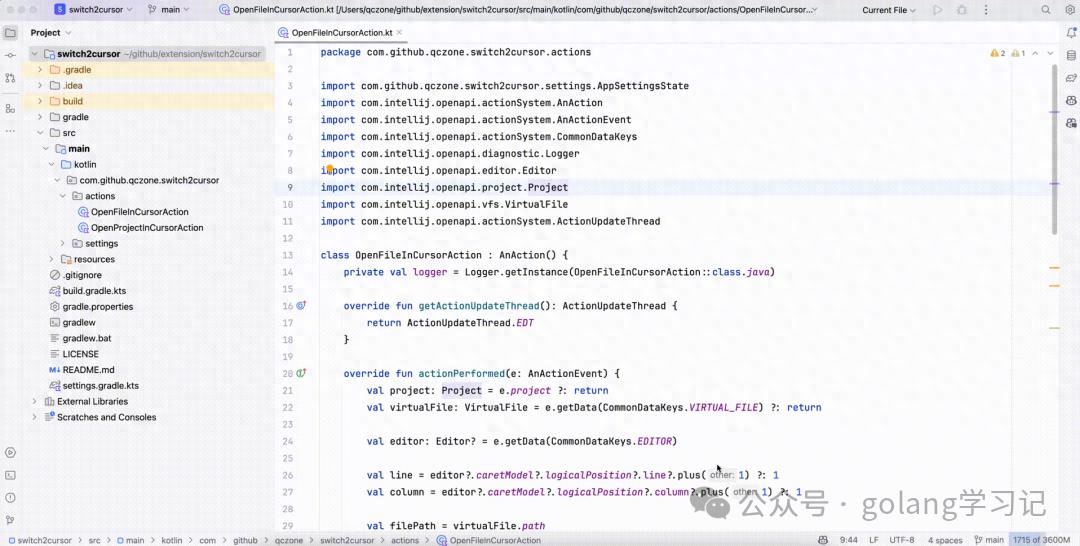
Installation and Configuration
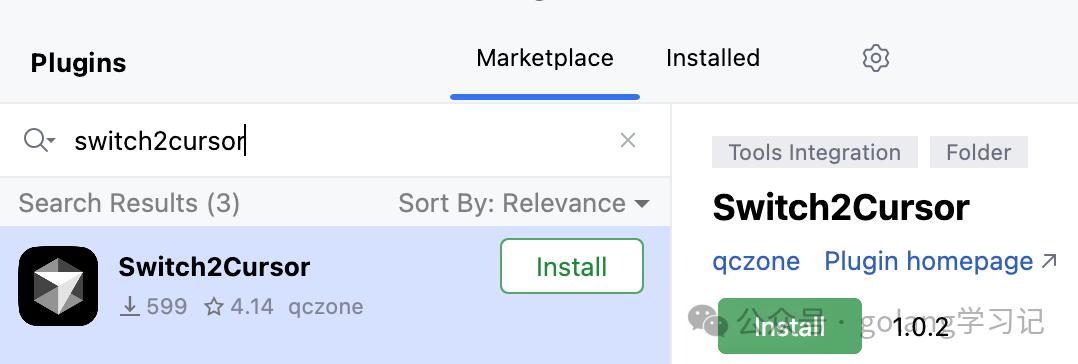
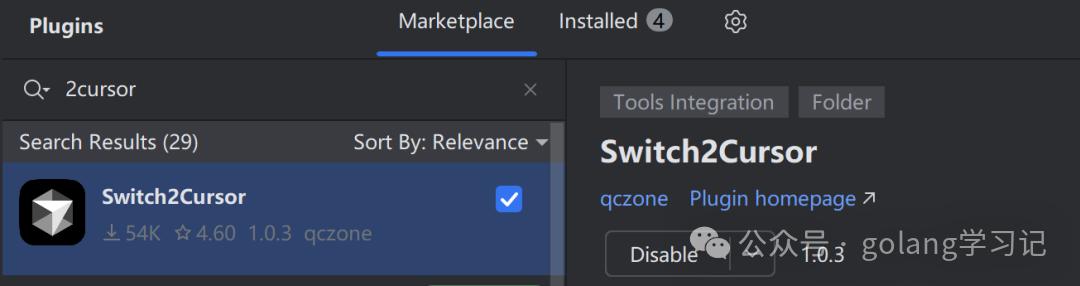
1️⃣ Install Switch2Cursor in IntelliJ IDEA
- Open IDEA → Settings/Preferences → Plugins.
- Search for switch2cursor → Click install.
- After installation, go to: Settings → Tools → Switch2Cursor.
- Set the path for the Cursor executable (default is cursor).
“Tip: You can customize the shortcut key via Keymap (recommended to keep default Alt + Shift + O).”
2️⃣ Install Switch2IDEA in Cursor
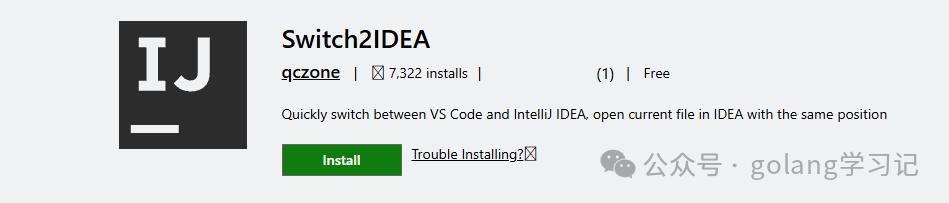
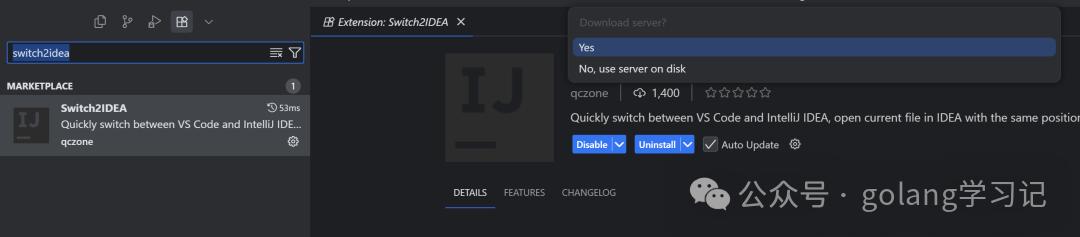
- Open Cursor → Click Extensions on the left activity bar (or Ctrl+Shift+X).
- Search for Switch2IDEA → Click install.
- Upon first use, the plugin will automatically detect the IDEA installation path:
- Windows: Default is C:\Program Files\JetBrains\IntelliJ IDEA\bin\idea64.exe
- macOS: Automatically traverses applications under /Applications.
- Linux: Defaults to using the idea command (ensure it’s added to PATH).
Usage Demonstration
Scenario: Generate Code in Cursor → Jump to IDEA for Debugging
- Write a prompt in Cursor: “Generate a Spring Boot UserController, including getUserById interface.”
- After AI generates the code, press Alt + Shift + O (Windows/Linux) or Option + Shift + O (macOS).
- IDEA automatically starts (or activates) and opens the current file, with the cursor precisely at the generated method location.
- Set breakpoints in IDEA, start debugging, and validate logic.
- Need to modify? Right-click the file → “Open in Cursor”, and instantly return to the AI editor for further optimization!
“Tested effect: Switching takes < 1 second, with zero context loss.”
Additional Tips: Enhance Collaborative Experience
1. Share Project Directory
Ensure that Cursor and IDEA are opened in the same project root directory so that file modifications sync in real-time, avoiding conflicts.
2. Unified Shortcut Key Style
In Cursor:
- Go to Settings → Keymap.
- Select “IntelliJ IDEA” keymap scheme.
- Reduce operational habit differences and enhance muscle memory consistency.
Conclusion: Let AI and IDE Play Their Roles for Smooth Development
“The best tool is one that makes you forget its existence.”
With the combination of Switch2Cursor + Switch2IDEA, we finally achieve:
- AI’s creativity (Cursor)
- IDE’s engineering power (IDEA)
- Seamless context flow (plugin collaboration)
No more frantic window switching, no more getting lost in the file tree. Just one shortcut key, focusing on coding itself. After installing these two plugins, while the daily development experience may not change drastically, it at least saves a few hours of distraction!
Comments
Discussion is powered by Giscus (GitHub Discussions). Add
repo,repoID,category, andcategoryIDunder[params.comments.giscus]inhugo.tomlusing the values from the Giscus setup tool.