Cursor AI Automation and Security Control Panel
This is the core AI Automation and Security Control panel of Cursor, which directly determines what AI can and cannot do, as well as your development efficiency.
This article covers all basic configurations of Cursor Agents, code review settings, advanced experience configurations, provides complete option explanations, common templates across industries, clarifies security risks, and adapts to six mainstream tech stacks: Frontend, Java, Python, Go, DevOps, and Testing. Beginners can directly copy configurations, while developers can avoid pitfalls accurately, all tailored for daily development scenarios.
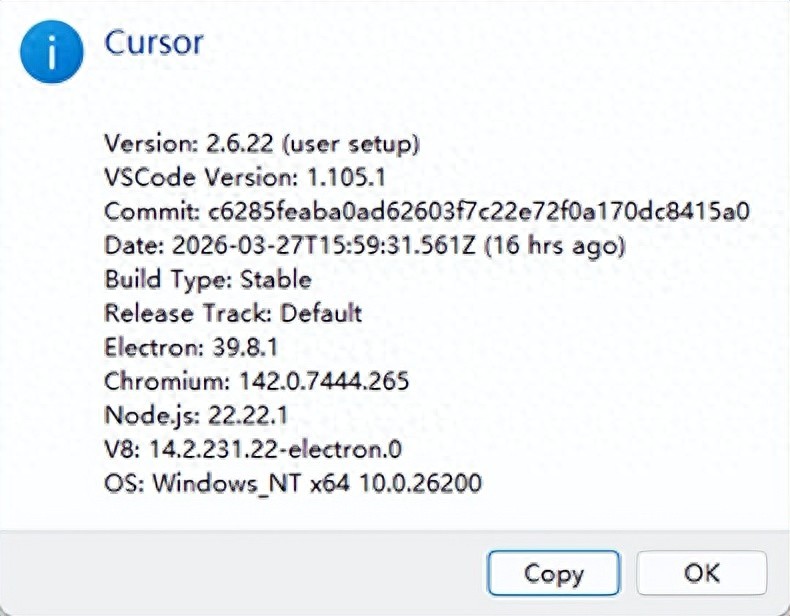
Current data is based on version: 2.6.22
1. Path: File->Preferences->Cursors settings->Agents
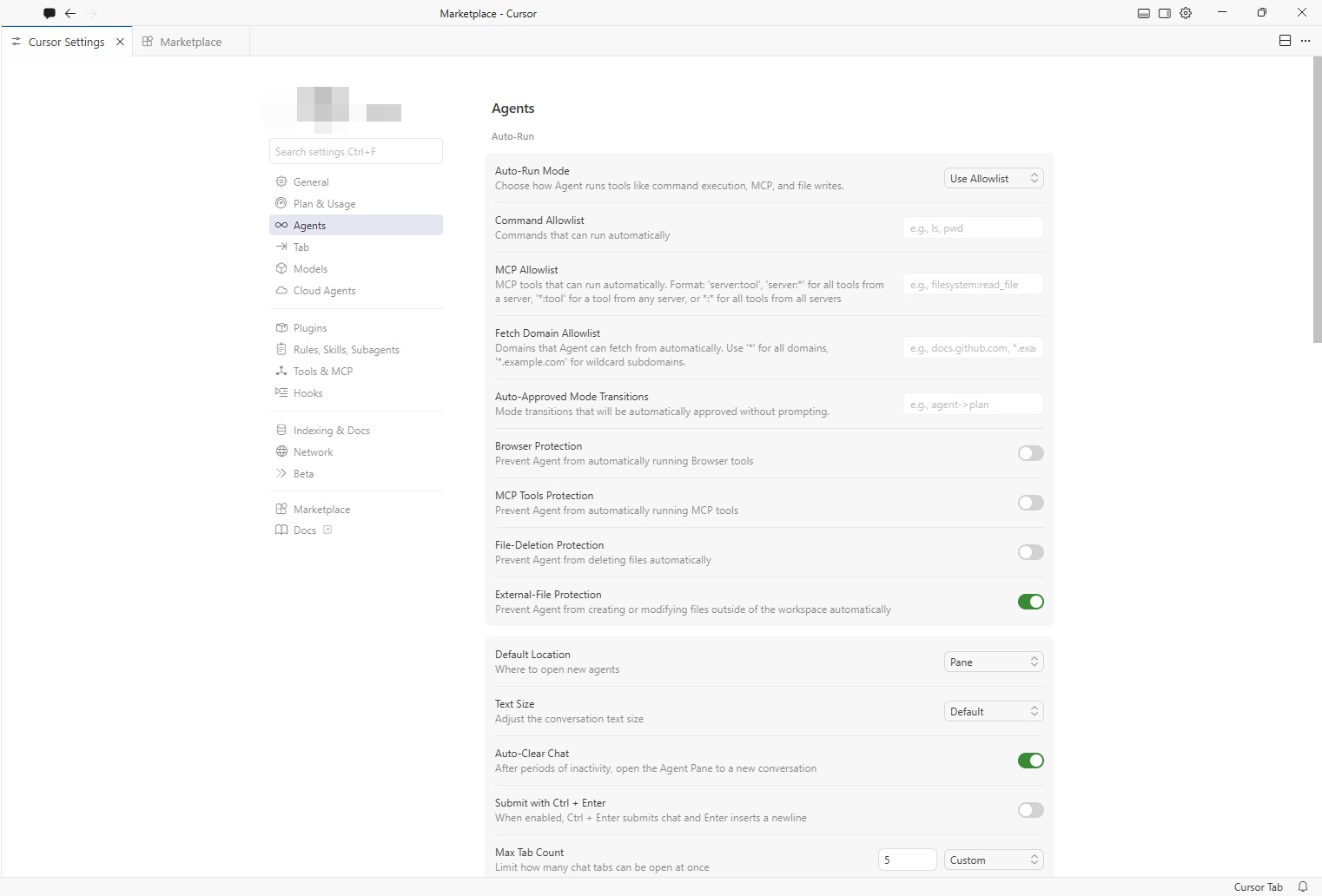
Basic Security and Automation Configuration
Auto-Run Mode
- Function: Controls the permission mode for AI agents to automatically execute commands, operate files, and call tools, deciding whether AI needs your confirmation to act.
- Recommendation: Prefer using the Allowlist mode for safety and ease of mind; do not recommend fully opening permissions.
Options:
-
Ask Every Time (originally Off)
- Function: The Agent will pop up a confirmation box for manual approval before executing any command, writing files, or performing MCP operations. AI has no automatic execution permissions.
- Safety Level: Highest (10/10)
- Applicable Scenarios: Production environments, core business code, just starting with Cursor, concerned about AI misoperations, and scenarios with high code security requirements.
- Configuration Suggestion: Suitable as the default security mode, switch temporarily when automation is needed. No risk of accidental file deletion or incorrect system command execution.
-
Use Allowlist (recommended)
- Function: Only automatically executes commands, MCP tools, and domains configured in the allowlist; operations not in the allowlist will still prompt for manual approval.
- Safety Level: High (8/10)
- Applicable Scenarios: Daily development, automated builds/testing, frequently executing safe commands (e.g., npm install, git, ls, npm run build).
- Configuration Suggestion: Only add safe commands in the Command Allowlist; strictly prohibit adding high-risk commands like rm, sudo, rmdir. In the MCP Allowlist, only add necessary tools (e.g., filesystem:read_file), avoid using wildcards. Simultaneously enable File-Deletion Protection and External-File Protection for enhanced security.
-
Run Everything (originally On/Yolo mode)
- Function: The Agent automatically executes all operations without requiring your confirmation, including file deletions, system commands, and network requests.
- Safety Level: Extremely low (2/10)
- Applicable Scenarios: Temporary demos, simple scripts, disposable test projects, rapid prototype development.
- Configuration Suggestion: Absolutely do not enable in production environments or important projects. Must frequently commit with Git to avoid irreversible actions. Switch back to Ask Every Time or Use Allowlist immediately after use.
How to Choose the Most Suitable Option?
- Beginners / Important Projects: Choose Ask Every Time, manual confirmation at every step, safety first.
- Daily Development / Efficiency First: Choose Use Allowlist, configure the allowlist, balancing safety and automation.
- Temporary Testing / Rapid Prototyping: Temporarily select Run Everything, switch back to safety mode immediately after use.
| Mode | Safety Level | Common Metaphor | Recommendation Index |
|---|---|---|---|
| Ask Every Time | ⭐⭐⭐⭐⭐ (10) | Bodyguard: confirms every step | ⭐⭐ (Must for beginners) |
| Use Allowlist | ⭐⭐⭐⭐ (8) | Gatekeeper: checks passes, prevents danger | ⭐⭐⭐⭐⭐ (Top recommendation) |
| Run Everything | ⭐ (3) | Unsupervised: runs freely | ⭐ (Only for temporary testing) |

Command Allowlist
- Function: Sets the terminal commands that AI can automatically execute, such as viewing and building commands.
- Recommendation: Only add necessary development commands, and absolutely do not include high-risk deletion or privilege escalation commands like rm, sudo.
General Basic Commands (Applicable in All Scenarios)
These commands only view information and do not modify/delete files, posing very low risk:
- ls / dir: List directory contents
- pwd: View current path
- cat / type: View file contents
- echo: Output text (safe when not overwriting files)
- find: Search for files (avoid -delete parameter)
- grep: Text search
- which / where: Find command location
- stat / ls -l: View file information
- tree: View directory tree structure
Common Commands for Frontend Development
Suitable for automated builds and dependency management in frontend projects:
- npm: Package management (e.g., npm install, npm run build, npm test)
- npx: Temporarily execute packages
- yarn / pnpm: Alternative package managers to npm
- node: Run scripts (only trusted scripts)
- git: Version control (git status, git add, git commit, git push, etc.)
- eslint: Code checking
- prettier: Code formatting
- webpack / vite / rollup: Build tools
Common Commands for Backend Development
Suitable for Java/Python/Go backend projects:
- java / javac: Java run / compile
- mvn / gradle: Java project build
- python / python3: Python scripts
- pip / poetry: Python package management
- go / go run / go build: Go language
- cargo: Rust package management and building
- docker: Container operations (only safe operations like docker build, docker run, avoid docker system prune)
- docker-compose: Multi-container management
- make: Execute build scripts
Testing and Tool Commands
Suitable for automated testing and code quality checks:
- jest / mocha / pytest: Testing frameworks
- tsc: TypeScript compilation
- curl / wget: Network requests (only trusted domains)
- ping / telnet: Network connectivity tests
- ps / top: Process viewing
- df / du: Disk space viewing
High-Risk Commands Absolutely Not to Add
These commands will delete/modify system files or escalate privileges, strictly prohibited from the allowlist:
- rm / rmdir / del: Delete files/directories
- sudo / su: Privilege escalation operations
- chmod / chown: Modify file permissions/owners
- mv: Move/rename files (may overwrite)
- dd/mkfs: Direct disk writing
- shutdown / reboot: System operations
- passwd: Modify password
- iptables / ufw: Firewall operations
- mkfs: Format disks
Recommended Allowlist Example
You can copy this segment directly into the Command Allowlist input box (comma-separated):
General Template:
Applicable Positions: Full-stack, personal projects, outsourcing, general development
- Covers the vast majority of development scenarios
- Most commonly used security allowlist in enterprises
ls,pwd,cat,echo,find,grep,npm,npx,git,node,jest,tsc,python,pip,go,docker,docker-compose,java,mvn
Common Template for Frontend Developers:
Applicable Positions: Web frontend, H5, mini-programs, Node.js, full-stack frontend
- Function: Supports project running, building, formatting, testing, and dependency installation
- Safety Level: Extremely high
ls,pwd,cat,echo,git,npm,npx,yarn,pnpm,node,tsc,eslint,prettier,vite,webpack,rollup,jest,vitest,serve,ping,grep,find
Backend Developer (Java/SpringBoot):
Applicable Positions: Java backend, microservices, SpringBoot development
- Function: Compile, package, run, test, container building
- Safety Level: Extremely high
ls,pwd,cat,echo,git,java,javac,mvn,gradle,ps,ping,grep,find,docker,docker-compose
Backend Developer (Python/AI/Data Analysis):
Applicable Positions: Python backend, AI development, testing, data analysis, web scraping
- Function: Run scripts, install dependencies, code formatting, automated testing
- Safety Level: Extremely high
ls,pwd,cat,echo,git,python,python3,pip,poetry,pytest,black,flake8,uv,ping,grep,find
Backend Developer (Go/Golang):
Applicable Positions: Go backend, cloud-native, gateways, middleware
- Function: go run, go build, go test, formatting, code checking
- Safety Level: Extremely high
ls,pwd,cat,echo,git,go,golangci-lint,ping,grep,find,docker
Testing Developer / Automation Testing Engineer:
Applicable Positions: Testing development, automation testing, interface testing
ls,pwd,cat,echo,git,python,pytest,node,jest,curl,ping,grep,find
- Function: Run automated test cases, interface testing, script debugging
- Safety Level: Extremely high
DevOps / Cloud Native / Operations Development:
Applicable Positions: Operations, cloud-native, CI/CD, deployment
- Function: Container operations, K8s, service viewing, network checks
- Safety Level: High
ls,pwd,cat,echo,git,docker,docker-compose,kubectl,ping,grep,find,ps
Best Configuration Recommendations
- Select Use Allowlist for Auto-Run Mode
- Directly copy the corresponding commands for your position into the allowlist
- Enable File-Deletion Protection + External-File Protection
- Principle of Least Privilege: Only add commands you use frequently in daily work, do not add everything at once.
- Customize by Project: Add frontend commands for frontend projects, backend commands for backend projects.
- Regular Cleanup: Remove unused commands from the allowlist promptly to avoid redundancy risks.

MCP Allowlist
MCP (Model Context Protocol) is the core capability of Cursor to connect external tools/services. The MCP Allowlist is used to control the MCP tools/commands that AI can automatically call, adhering to the principles of least privilege and safety first.
- Function: Defines the MCP tools/commands that AI can automatically execute; those not on the list require manual confirmation.
- Format: Generally in the form of service:tool name to prevent random system capability calls.
- Safety Principle: Only add read-only/low-risk tools, prohibit write/delete/escalation operations.
Mainstream MCP Command/Tool Categories (Safety Allowlist)
-
Basic File System (Filesystem MCP)
- Most commonly used, safe file operation tools, only allow read-only/safe write:
- readFile: Read file content (safe)
- listFiles: List directory files (safe)
- searchFiles: Search file content (safe)
- writeFile: Write file (cautious, only in trusted scenarios)
- createFile: Create file (cautious)
- deleteFile: Prohibited (high risk)
- renameFile: Prohibited (high risk)
- moveFile: Prohibited (high risk)
- Most commonly used, safe file operation tools, only allow read-only/safe write:
-
Code Search/Analysis (Codeface MCP)
- Codebase retrieval and analysis, no risk:
- codefaceSearch: Code snippet search
- codefaceListSymbols: List code symbols (functions/classes)
- codefaceGetDefinition: Get code definitions
- Codebase retrieval and analysis, no risk:
-
Terminal Command Execution (Terminal MCP)
- Reuses Command Allowlist, only allows safe commands (same as previous command allowlist):
- executeCommand: Execute terminal commands (must be strictly whitelisted)
- Reuses Command Allowlist, only allows safe commands (same as previous command allowlist):
-
Network/API Tools (Web/API MCP)
- Network requests and data retrieval, limited to trusted domains:
- httpGet: GET request (only trusted domains)
- fetchDocumentation: Get official documentation
- webSearch: Web search (safe)
- Network requests and data retrieval, limited to trusted domains:
-
Database MCP (SQL/DB MCP)
- Only allows read-only queries, prohibits writing/structural modifications:
- sqlSelect: SELECT query (safe)
- sqlDescribe: View table structure (safe)
- sqlExplain: Execute plan analysis (safe)
- sqlInsert: Prohibited
- sqlUpdate: Prohibited
- sqlDelete: Prohibited
- sqlDrop: Prohibited
- sqlAlter: Prohibited
- Only allows read-only queries, prohibits writing/structural modifications:
-
Design Tools MCP (Figma/Design)
- Converts design drafts to code, with no system risk:
- figmaGetDesign: Get Figma design drafts
- figmaExportAssets: Export design resources
- Converts design drafts to code, with no system risk:
MCP Allowlist Configuration Best Practices
- Least Privilege: Only add tools necessary for your current position, avoid redundant configurations.
- Tiered Security: For personal projects: can appropriately open writeFile, createFile. For enterprise projects: only allow read-only tools (readFile, listFiles, codefaceSearch, sqlSelect), prohibit any writing/deleting.
- Combined Configuration: MCP Allowlist + Command Allowlist + File-Deletion Protection, triple security protection.
- Regular Audits: Check MCP configurations monthly, removing tools no longer in use.

Fetch Domain Allowlist
- Function: Specifies the domains that AI can automatically crawl content from, adhering to the least privilege + safety first principle; domains not on the list require manual confirmation for each crawl.
- Recommendation: Only add official documentation and trusted tech sites, avoid using wildcard domains to reduce privacy and security risks.
- Frontend Development (Documentation + Package Management)
github.com,*.github.com,npmjs.com,*.npmjs.com,developer.mozilla.org,*.vuejs.org,*.react.dev,*.nextjs.org
- Java Backend (Documentation + Cloud Services)
github.com,*.github.com,docs.spring.io,*.spring.io,*.docker.com,*.kubernetes.io,*.aliyun.com
- Python/AI (Documentation + Data)
github.com,*.github.com,python.org,*.python.org,pypi.org,*.pypi.org,tensorflow.org,*.huggingface.co
- DevOps / Cloud Native
github.com,*.github.com,*.docker.com,*.kubernetes.io,*.aws.amazon.com,*.cloud.google.com,*.aliyun.com
- General Development (Universal Template)
github.com,*.github.com,npmjs.com,*.npmjs.com,developer.mozilla.org,*.docker.com,*.kubernetes.io
Configuration Effect Rules
- Priority: Project-level configuration > Global configuration (project configuration will override global)
- Effect Method: Modifications to configuration files do not require restarting Cursor, take effect immediately.
- Safety Tips: For enterprise projects: only add official documentation, trusted package sources, internal service domains. For personal projects: can expand appropriately, but prohibit using * global wildcards. Regular audits: clean up unused domains monthly to maintain least privilege.
Comments
Discussion is powered by Giscus (GitHub Discussions). Add
repo,repoID,category, andcategoryIDunder[params.comments.giscus]inhugo.tomlusing the values from the Giscus setup tool.